
Recording SME Demos -- It's Easier Than You Think
You know the scenario: you've been assigned a new application to document, and you arrange for the subject matter expert (SME) to demo it. But when you show up at the demo, the SME is on fast-forward, moving through each tab and screen on hyperdrive. From your perspective, the SME may sound like this: Soyoucandothisonthistab and fromhereiswhereyoudothat and makesureyoudocumenthowtodothis ....
Before you know it, the 1 hour demo is over, and the SME has crammed an entire encyclopedia of information down your throat before you can properly chew and digest the information.
There's a good solution to this. You can easily record these SME demos and play them back at your convenience -- multiple times.
There are a variety of recording techniques, but here's how I do it.
Equipment Needed
- Camtasia Studio
- Zoom H4 microphone
- USB cord
- laptop
SME Recording Process
To record the SME demo:
- Use your laptop for the demo. (This also helps ensure you have access to the application. If you can't use your own laptop, I'm afraid this technique won't work without a video camera or some other screen-recording software, such as Jing.)
- If you're connecting to a projector, adjust your laptop's resolution. The most common resolution for projectors is 1024 x 768. (To set your resolution, right-click your desktop, select Properties, and go to the Settings tab.)
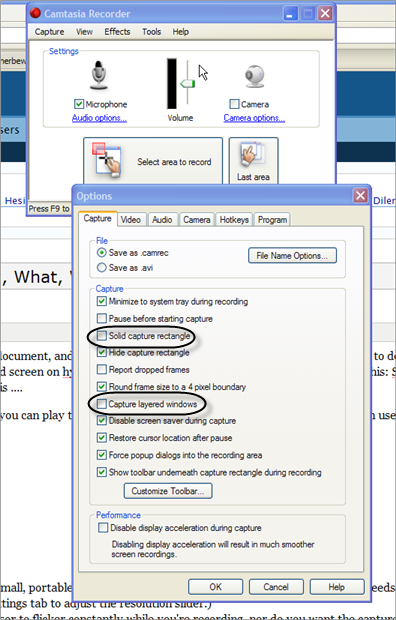
- Adjust your Camtasia Studio settings. You don't want the cursor to flicker constantly while you're recording, nor do you want the capture rectangle box to show. Otherwise your demo session will have constantly flashing circus lights.
To turn these settings off, click the Make Recording link in the Task List in the upper-left of Camtasia's main window. Then in the Camtasia Recorder dialog box that appears, go to Tools > Options and deselect the Capture Layered Windows and the Solid Capture Rectangle check boxes. (See the image below.)
- Attach a USB cord from your Zoom H4 to your laptop and switch the Zoom H4 to the "Audio Interface" option.
- Put the Zoom H4 on a little tripod and move it near to the SME's mouth. Turn the input volume up to high.
- In the Camtasia Recorder dialog box, go to Tools > Options and then click the Audio tab. Make sure the Zoom H4 is selected as the input microphone device for the Camtasia recording.
- Drag the Camtasia recording area to cover the entire screen, and then click Record.
- When finished, stop the recording and produce a video at the same full screen resolution -- 1024 X 768. This isn't a demo you're distributing to anyone, so file and screen size doesn't matter.
Having a recorded SME demo will enable you to refer back to the file for later use, or send it to other authors who are working on the project.
About Tom Johnson

I'm an API technical writer based in the Seattle area. On this blog, I write about topics related to technical writing and communication — such as software documentation, API documentation, AI, information architecture, content strategy, writing processes, plain language, tech comm careers, and more. Check out my API documentation course if you're looking for more info about documenting APIs. Or see my posts on AI and AI course section for more on the latest in AI and tech comm.
If you're a technical writer and want to keep on top of the latest trends in the tech comm, be sure to subscribe to email updates below. You can also learn more about me or contact me. Finally, note that the opinions I express on my blog are my own points of view, not that of my employer.