Home
  • About
  • Contact
  • Presentations
  • WordPress Consulting
  • Advertising
  • Guest Posts
  • For Students
  • Jobs
  • Podcasts Book Reviews

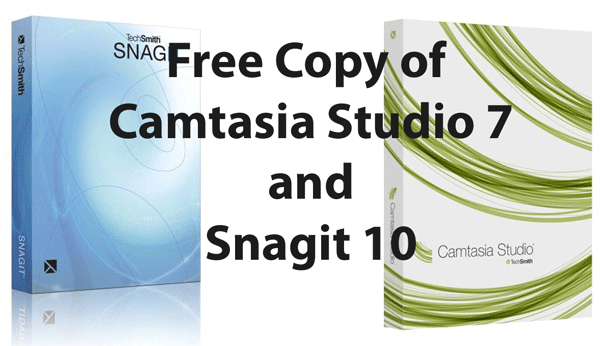
    Free Copy of Camtasia Studio 7 and Snagit 10

    July 12th, 2010 | Posted in Uncategorized 23 Comments »

    Techsmith gave me a free copy of Camtasia Studio 7 and Snagit 10 to give away on my blog. To enter the contest, just leave a comment on this post. In your comment, tell me something interesting about screencasting. It could be a tip, an argument, a story, a scenario, a technique, or whatever. The most interesting comment wins a copy of Camtasia Studio 7. The second most interesting comment wins a copy of Snagit 10. Winners will be announced on Friday, July 16.
    Sponsors

    Tags: , , , , ,

    If you liked this post, keep updated with new content: Subscribe to I'd Rather Be Writing.

    Both comments and pings are currently closed.

    23 Responses to “Free Copy of Camtasia Studio 7 and Snagit 10”

    1. Screencasts can be great but it may take a long tome to find the part you want. I would like to investigate the use of a set of very short screencasts organised by the topic-based principles of DITA. I believe topic-based navigation would enhance the value of screencasts and Camtasia.

    2. Oops.. tome = time

    3. Often, screencasts are regarded as a separate, standalone thing. There is a manual, here is an online help file, there is a totorial, and there are some separate screencasts on the web site. My tip: Integrate the media. For example, just like you add a screenshot to an online help file, add a little screencast if this is more helpful. This screencast can be very short, maybe just one drag-and-drop operation or the like. Isn’t this more helpful than a static image? Integrate the mini screencast right in the middle of the topic where it belongs. Use words where words best convey your message, integrate a static image or screen capture where you don’t have to show an action, and add a (mini) screencast where this adds some extra value when compared to the picture.

    4. justelise says:

      In an economy that’s still very weak where positions are still disappearing, screencasts may end up taking the place of an internal trainer for some organizations. They can save the organization money and help you provide the employees the quick job aids they need to get their work done.

    5. michael says:

      I use a little application called Sizer (Google it) to resize and position my software windows before starting a screencast or screenshot. That way, if I have to rerecord a portion of the screencast later, I can use the same settings and achieve uniform look and feel.

      • Tom Johnson says:

        Sizer is really helpful. I had no idea the app existed. For this comment you win second place, the copy of Snagit. Thanks,

        Tom

      • Tom Johnson says:

        Oh shoot, I just realized that my copy of Snagit is bundled with Camtasia, so I actually can’t separate them. Sorry about that. I guess I have to give both Snagit and Camtasia to the first place person only. My apologies.

    6. Richard Rabil, Jr. says:

      Hey Tom, thanks so much for doing this contest. I have a story and some lessons learned which I think are quite applicable and could benefit other technical communicators.

      Last spring, I took a graduate-level technical communication course that focused specifically on style as one of the five canons of rhetoric. The course gave me an opportunity to use Camtasia to deliver a 3-minute screencast of my final project, complete with voice-over narration, screenshots, and background music. As a result of the experience, I fell in love with Camtasia, and learned some valuable stuff about screencasting in general.

      As part of my final assignment, I had to create an audio presentation discussing the relationship between style and another topic of choice. I chose to research “style and video game dialog,” a topic that has always fascinated me for the way game dialog immerses users in role-playing games. Here is the URL for the screencast I created, which I published to YouTube: http://www.youtube.com/watch?v=8EbQq92_UC8.

      From the outset, I wanted to deliver the screencast with zest—i.e., with a lively and down-to-earth voice-over, engaging graphics, intuitive flow, etc. Oddly enough, I didn’t think I’d need to use Camtasia to do this. I thought I could simply use the built-in features of Prezi, a free online zooming presentation editor (which, if you haven’t tried out, is well worth learning about at http://www.prezi.com).

      But as I developed the presentation, I learned that while Prezi is great for presenting text, pictures, and digital videos in a non-linear zooming fashion, it’s not so great if you want to add voice-over narration that guides the user through one seamless, uninterrupted screencast. Specifically, Prezi only allows you to add an audio file that activates upon a user click. It doesn’t really let you (the presenter) record your audio as you go from point A to point B.

      On top of that, inserting an audio file is not an intuitive function in Prezi, mainly because you have to use FLV or SWF format. Most audio files are recorded in a different native format (such as AIF, for example), and it can be time-consuming to do a file conversion. Even when you do have an FLV or SWF audio file, inserting it into Prezi is somewhat difficult. It takes a while to load and you can easily lose track of the file once it is loaded, because the file’s icon disappears.

      Don’t get me wrong. Prezi is a wonderful advancement over PowerPoint, and I wish I could work for such an innovative software development company. But the tool is primarily a presentation editor, not a screencast editor.

      Here’s where Camtasia came in. Camtasia allowed me to record voice-over and screen movement as I went through presentation, and then easily export the resulting video file to the Web. So, first, I created a draft of my presentation in Prezi, where I wrote the text snippets, inserted the screenshots, and defined the path I would walk the viewer through. Then I used Camtasia to record my voice and my screen activity as I went through those steps.

      I quickly found that I would need to bring more structure to my screencast, because I couldn’t walk through so many steps without clicking too fast at one point, stammering at another, or exceeding my time limit. I wanted to get my voice inflections and pacing just right, and I couldn’t record three minutes at once unless I had more time to practice. To overcome this challenge, I used script writing techniques based on the free documentation that Camtasia provides. I first broke my overall presentation down into individual “storyboard” components (where each “component” has a series of steps), and recorded each component separately—knowing, of course, that I could integrate them later using Camtasia’s editing tools. Second, I created a screencast script in a table form with the following columns:

      • Column 1: Step. This indicated the specific “step” I would pause at in the screencast. A step could be a title, a screenshot, embedded video, or any other on-screen object.
      • Column 2: Script Text. This is what I would say at each particular step.
      • Column 3: Time. This indicated how much time I allocated to each step (or group of steps).

      The script, which I updated over and over as I continued recording, gave me a good anchor for controlling the timing and narration of each screencast component. I highly recommend a script like this for all screencasts, regardless of size. It’s easy to make; all you need is a spreadsheet or a table.

      Another lesson I learned it just how different voice-over narration is from writing a manual or an article. I was writing a script that would be “heard” and/or “watched” as opposed to “read.” One important implication, of course, is that you shouldn’t just repeat what’s already on-screen, but enhance it by providing some illuminating, concise, and compelling commentary.

      I also used Camtasia to add an audio track to the screencast. The great thing here is that Camtasia lets you edit the track by adjusting its volume at key intervals, splicing it if necessary, and controlling the way it fades in and out during the beginning, ending, or during transitions in between. What I didn’t really use were Camtasia’s zooming and focusing capabilities. Prezi already let me do that, with its features for focusing the viewer’s attention on one thing at a time, zooming in and out for each piece of text, screenshot, or other on-screen object.

      In terms of other lessons learned, I think the greatest weakness of my screencast is that it’s too fast and too dizzying. I was constrained by a 3-minute time limit, which I still exceeded a little. If I could go back, I would pause longer at each screenshot to give viewers more time to digest it. Also, I would reduce the amount of zooming and spiraling (some users told me it was too disorienting), and I’d add at least one video of some recorded gameplay to illustrate my arguments.

      At any rate, Camtasia gave me highly-intuitive capabilities for capturing the appropriate screen area, editing the recorded clips, adjusting volume, adding background music, and easily exporting the screencast to YouTube. I only wish I had more time to apply Camtasia to other projects before my trial ran out.

      Wow, I wrote more than I thought I would. Apologies for rambling on like this, but I hope this story gives some valuable thoughts and ideas to you and many other TCers out there. Thanks for the opportunity to share! Do let me know if you have any questions, and of course I’d love for you or anyone else to watch my screencast and leave me comments and suggestions.

      Take care!

      -Richard Rabil

      • Tom Johnson says:

        Richard, excellent comment. I enjoyed watching your Prezi video and learning about your technique. For this comment, you win first place and the copy of Camtasia.

    7. Andy Benoit says:

      Screencasts to Support Universal Design for All

      As an able bodied individual I have never been denied access to physical space, nor
      have I been confronted with individuals requiring accommodations in my classroom.
      However, recently as a parent, I have discovered that not all “family” attractions, i.e.
      museums, restaurants, are created equal: Lack of change tables, space to
      accommodate strollers, quiet spaces to relax, are but a few examples. Prior to becoming a parent, my needs were quite different, and I certainly never encountered a diminished experience resulting from a lack of effective design. How might others, even those without children, benefit from the inclusion of an intentional design that attends to users’ needs?

      Rose and Meyers (2002), conceive of accessibility from a boarder more inclusive perspective. They extend the conception of “barrier” to include not only physical obstacles that an individual must overcome in the natural environment, but also those cognitive processes essential for learning. They state that a Universal Design for Learning (UDL) curriculum, much like a physical structure, should provide alternatives and options that reflect an intentional consideration for learner diversity, i.e., learning styles, backgrounds, as well as disabilities. Rose and Meyers (2002) illustrate how previous conceptions of intelligence, as measured by IQ, have contributed to a learning environment in which “intelligence” is perceived as a mold into which all individuals must fit.

      Drawing on brain based research, Rose and Meyers have recast the conception of intelligence as both fluid and multidimensional, thereby shifting the responsibility for finding accommodations away from the learner and onto educators to create more inclusive designs that accommodate the inherent diversity found in the classroom (2002).

      Looking back on my experience as a language instructor, I wonder what I might have done to intentionally design a learning environment attentive to not only to the visible diversity of learners, but also the invisible diversity as reflected in students’ prior experience, ability to self direct learning, and affect with the content in general. I wonder now how I might have capitalized on one student’s strong proficiency with oral communication to compensate for the challenges they faced reading printed course materials…how my reliance on printed text to deliver instructions for speaking activities and that student’s ensuing confusion, may have been averted though a more intentional design that considered his learning preferences and unique talents, perhaps, by simply reading the instructions aloud, or by providing a screencast in advance of class.

      In short, I suggest that screen casts offer one way for educators to accommodate learner diversity.

      References:
      Edyburn, D. L. (2006). Failure is Not and Option. Learning and Leading with Technology. September 2006. Course Reading: University of Calgary: Technology and Universal Design. Retrieved from Blackboard. September 2009.

      Rose, D.H, Meyer, A. (2002). Teaching Every Student in the Digital Age: Universal Design for Learning. Association for Supervision and Curriculum Development.

      Rose, D.H, Meyer, A. (2000). The Future is in the Margins: The Role of Technology and Disability in Educational Reform. Course Reading: University of Calgary: Technology and Universal Design. Retrieved from Blackboard. September 2009.

    8. Rengaraman says:

      During screencasting we tend to make mistakes. Don’t bother about that. There is always a room for editing to correct your mistakes. Instead of closing the session and redoing, pause for a minute or take a breath and redo that particular erroneous segment again.
      Avoid wearing a tie as it may give you a bit of inconvenience (my personal experience) while screencasting. :)

    9. Nick says:

      Screen casting is break through and disruptive – Screen casting make your stories stick and stories provide the simulation to tell us why and how to take action . There is no better way of telling a story than through the moving image. Screen casting over the Internet democratizes the power of broadcasting….

    10. Evan says:

      To me, there’s a good and bad side to screencasting. The good side is showing explicit step in a demonstration or tutorial. The bad being that one can get lost as to where that step appears. Now if there’s a program out there that allows you to mark certain points of the video where a particular step is, then it would make the screencast much easier to navigate through.

    11. Scott says:

      Screencasts should fit into one of two categories to be effective: the in-depth tutorial that is meant to be followed along with step-by-step, and the “quick glance” overview screencast that should be shorter than 30 seconds to minimize drag on the viewer’s experience.

      The in-depth tutorial is something that is searched out by the viewer, and they are prepared to spend ten to fifteen minutes on this screencast to learn something in detail which they will then try to implement themselves. An example of this might be a walkthrough of an involved procedure in Photoshop.

      The quick glance is an introduction to a concept, product, or feature that the viewer was probably not aware of prior to visiting the web page the screencast is on. They are willing to invest 20-30 seconds to find out a little more, but that’s it. An example of this could be “Why you should use WordPress”.

      By tailoring screencasts to these two audiences, screencasters can better meet the needs of their audiences and avoid losing the audience altogether.

    12. dundee says:

      After being affected by the recent economic downturn I decided to do something alternative and better and I turned to screencasting. I researched and studied some material on that topic and I started to look at the options I had in terms of the software. I read about Camtasia Studio 7 and it is really a pretty good screencasting software. The situation now is I want to do screencasting and turn things around for me but admittedly I am not in a position to pay and buy Camtasia Studio. I am not complaining but I want to take this situation by the horns, turn it into an opportunity for myself, and come out with flying colors. Soon I realized I needed help. I started looking online for a free version of Camtasia Studio and after (trust me) a lot of searching online I stumbled upon this giveaway, which I felt like it is a saving grace for me. I know there are many worthy contenders but I’ll feel really lucky and saved if I am chosen the winner and win the license of Camtasia Studio. I will put Camtasia Studio to very good use. I will create videos to help others learn how to use computers and Office applications. I will definitely give it back to the community in the form of e-learning video presentations, but before I can do that I need to win this license. For now I will keep my fingers crossed in anticipation of the results. Hopefully I am the chosen one.

    13. Videhi says:

      Screencasting – I am movie buff and hence I would fancy this as Lights, Camera, Action!

      On this occasion I would like to share a little anecdote on how I sold the idea of introducing videos in product documentation.

      I have always been intrigued with motion media and wanted to explore its possibilities in technical writing. My only intention was “we write great stuff, then why not present it in a captivating fashion instead of plain text!” We don’t need extraordinary ID skills or tools to record what we do. All it needs a slight shift in thought process!
      As it was a trial and error attempt, I was forced to go Open Source. Hence I chose Wink and Sizer as my primary armors. Here’s what I’ve done..

      - chose a complex procedure – difficult to read and follow
      - executed it on the product – recorded it in wink
      - rolled out the 1st version – with textual annotations
      - rolled out the 2nd version -went an extra mile – added my own voice – with a basic mike in non-sound proof meeting room. I didn’t sound mechanized and was quite natural 
      - enjoyed doing every bit of it

      My next hurdle was to prove that it is not that time consuming to create videos as opposed to the conventional picture perfect screencasts. So, I hand picked few team members and trained them on the tool and let them transcend the traditional horizons of technical writing at their own creative levels. What next – All the 11 videos that were created in 5 days were a huge hit and the management was more than happy to buy the idea. Ever since then, all the writers have been asked to screencast the features along with textual information, as the demand for videos has been increasing exponentially.

      From this experience, I realized just one thing “Give your best and the spirit will infect people around you”.

    14. venkky says:

      First thanks for giving this opportunity to others to have an excellent screencasting software. I have been using the free CamStudio screen recording software for my recording needs but if I can win this license of Camtasia Studio it would be awesome. One of the main challenges I face is capturing computer/program issues and communicating resolutions to others. It is sometimes really hard to explain or even use pictures to communicate a problem. This is also true when attempting to resolve an issue. After all what good is the message if the receiving party cannot comprehend what I am trying to say. It occured to me that using a screen recording software would be very effective and I started using CamStudio which got the job done for me. Ultimately I realized screencasting is the way to go. But as the complexity, volume, and types of issues increased I felt a need for a more advanced screencasting software which would address size, multiple output format, animations, zoom in/out, etc. limitations. I believe Camtasia Studio will help me overcome these limitations. If I win this license I know I will overcome the hurdles I face in screencasting. I really want to win this license to be able to help others and help myself. Great giveaway. God Bless.

    15. ShawnLyn says:

      I find screencasting interesting because I haven’t gotten to create one yet. I would like to make a tutorial, I have even written the script, but I can’t because I don’t have Camtasia. My company has Camtasia Relay but Relay doesn’t really let you edit what you record. If I could record my tutorial and my company could see the benefit maybe my company would be willing to buy licenses for other workers. Thanks for holding this contest. I hope I haven’t entered too late.

    16. [...] Rather Be Writing Free Copy of Camtasia Studio 7 and Snagit 10 To enter the contest, just leave a comment on this post. In your comment, tell me something [...]

    17. Jim M says:

      Ahhh Screencast is worth a million words… when providing support is critical… the visual is soooo worth the effort…. what a great concept!

    18. JJTrainer says:

      To dundee,

      Don’t let the fact that you did not win a copy of Camtasia Studio stop you from your persuit. Here are some alternative tools that may help you accomplish your goals until you are able to purchase a copy of Camtasia (or win one in another contest).

      http://www.CourseLab.com – course creation software (free)
      http://www.jingproject.com – 5 min. screen capture tool (free) made by Techsmith, the same people who brought you Camtasia Studio, SnagIt and other great tools. You can embed the Jing captures in your CourseLab eLearning class.
      http://www.audacity.com – free audio capture and editing software
      http://www.debugmode.com/wink/ – Wink screen capture software has call-outs and allows for editing once you’ve captured your screen movements.

      Good eLearning is about the design of the course, not the tool you use to create it. The can better tools make your task easier, faster and more fun.

      For more great eLearning tips, visit Tom Kuhlmanns’ blog: http://www.articulate.com/rapid-elearning/

    « »