


Looking at a site like an agent — identifying semantics in styling
- Styling that carries meaning
- Redesigning the content
- Comparing the human view and the agent view
- Complex tables and Markdown
- Conclusion
In my previous post, I noted that making documentation agent-readable involves identifying any content that loads through JS and stripping those features from a site. I nuanced that by saying that this load-on-click content differs from view-on-click content that’s merely hidden by CSS but always present in the source.
Now I want to address another kind of agent-readability problem: styling that carries meaning. If your CSS or icons are doing semantic work, that meaning gets stripped away in the agent view. Fixing these issues takes more than removing the CSS. If you remove the CSS, the meaning of the content changes. Instead, you have to redesign the content to present the info in another way.
Styling that carries meaning
Consider a common scenario. A product page has a table that compares three service tiers: Basic, Standard, and Enterprise. You click a tab to choose a tier. The table lists every module across all the tiers, and the modules that aren’t included in the selected tier appear in gray italic text. In the screenshot below, the Standard tab is selected, so modules like Archive Vault, Cold Backup, and Anomaly Scanning are grayed out. To a human reader, the gray text means “not included in this tier.”
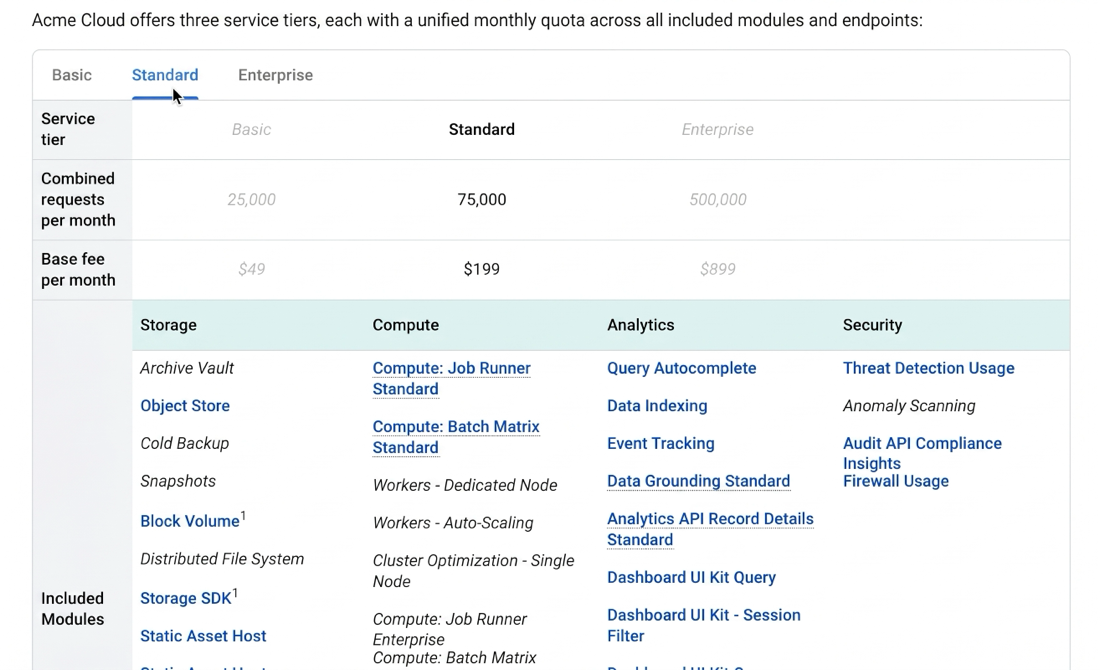
The tabs themselves aren’t the problem. All three tab panels are in the page source, so this is the view-on-click content I described in my previous post. The problem is the gray text. When you fetch a table like this through an AI agent’s web fetch tool and look at the Markdown it receives, the styling is gone. Each tab’s table lists every module in plain text. Under Standard, Archive Vault sits next to Object Store with nothing to tell them apart. The only leftover clue might be that the included modules are links and the excluded ones aren’t, and I wouldn’t count on an agent to infer meaning from that.
If a user asks an agent which modules the Standard tier includes, the agent will likely give a confident wrong answer. This isn’t really hallucination. The agent answers accurately from what it received, and from what it received, every module looks included.
This kind of styling has an accessibility problem that predates agents. WCAG success criterion 1.3.1 (Info and Relationships) says that information conveyed through presentation should be programmatically determinable or available in text. And 1.4.1 (Use of Color) says color shouldn’t be the only visual means of conveying information. The W3C notes that people using text-only or monochrome displays can’t access information that’s presented only through color. An agent is another text-only reader. If you’ve followed accessibility guidance, you’re most of the way to agent readability.
Another example. Suppose you have a table with features in the left column and check marks in the right column. The check marks are icons from an icon library like Font Awesome or Material Symbols, and you use the check mark to mean included.
To a human reader, the check mark means included. But what the agent sees depends on how the icon is built. Font Awesome icons are set through a class name, like <i class="fa-solid fa-check"></i>. That element has no text, and HTML-to-Markdown converters usually drop class attributes, so the agent sees an empty cell. Material icons use a ligature, where the icon name is the element’s text, like <span class="material-symbols-outlined">done</span>. Here the word “done” survives, but the agent sees “done,” not “included,” and has to guess what you meant. Either way, meaning rendered through style has created problems for agent readability.
Redesigning the content
So what does a redesign look like? For the tiered table, swapping the gray text for a “Not included” label on every excluded module isn’t a good fix. Repeating that label dozens of times makes the table hard for human readers to scan.
A better fix is to restructure the content. Have each tier list only what it adds, and say that it includes everything in the previous tier. For example, the Standard tier would say it includes all Basic modules, plus a short list of new ones. Humans and agents can both read that without any styling.
For the check marks, keep the icon and add visually hidden text such as “Included.” Visually hidden text (the kind written for screen readers) doesn’t appear on screen, so human readers see only the check mark. But it’s real text in the page, so it survives Markdown conversion. An aria-label attribute usually doesn’t, because converters drop attributes.
Comparing the human view and the agent view
Learn to identify areas of your site where the human view differs from the agent view. One way is to compare the Markdown mirror of a page against the rendered HTML view and see if the content differs.
Keep in mind that the mirror only approximates the agent view. Many agents fetch the HTML and convert it with their own converter, and their output can differ from your mirror. So also test the real path: ask an agent to fetch the page and tell you what’s in the table. That’s an easy way to catch problems like the ones in the tiered table above.
You can also create a skill that does this same task. The skill looks at each page in your docs, compares it against the Markdown mirror, and flags any discrepancies.
One caveat: not every agent reads text. Browser-using agents that work from screenshots will see the gray text. But the most common path today is fetch and convert, and that’s the path where styling disappears.
The tension here is that the semantic notations are often adopted for a specific purpose. Technical writers deal with a high level of information complexity. If you resort to different stylistic measures to help readers make sense of that content, it will be hard to simply redesign the page using a simpler structure.
Sponsored
Complex tables and Markdown
Tables are another danger point. Pretty much every technical writer, at some point, has been given a complex table from a PM, who created it in Sheets or Google Docs, to publish in the docs. The table has merged rows, column spans, multiple header rows in different colors, and about 9 columns. The table in the preceding screenshot is a good example. You can translate the complex table into HTML and style it to make it more intelligible. But much of that work won’t reach the agent.
Standard Markdown tables (the GitHub Flavored Markdown kind) don’t support merged cells, column spans, or multiple header rows. When a toolchain converts your complex table to Markdown, whether it’s ingesting your site into an MCP server or an agent is fetching a page, it has to flatten the table, keep it as raw HTML, or drop structure.
Behavior varies by tool, but merged cells and multi-row headers are often lost or mangled. The tiered table above is an example. When this table is converted to Markdown, are the rows and columns still in tact? Or does the structure get mangled? In this example, the row with the module categories (Storage, Compute, Analytics, Security) ends up inside the same grid as the tier columns. “Storage” moves under the Basic column, “Compute” under Standard, and “Analytics” under Enterprise. In short, look to see if your complex table structure still remains structurally the same in Markdown.
The end result is that instead of complex tables and endless pages, we’ll need to break information into smaller chunks and simpler tables, and link them together.
There’s a second reason to favor Markdown, and it has to do with cost, not structure. HTML carries a lot of markup that means nothing to a model: divs, scripts, navigation, class names. When Cloudflare launched its Markdown for Agents feature, it reported that its announcement post took 16,180 tokens as HTML and 3,150 tokens as Markdown, about an 80% reduction. Cloudflare also says coding agents like Claude Code already ask for Markdown when they request a page. The same content costs far fewer tokens as Markdown, which leaves more room in the agent’s context for other information.
So Markdown wins for two reasons. First, it costs fewer tokens than HTML. Second, whatever you build in HTML often gets reduced to Markdown when an agent reads it, so if you design within Markdown’s limits, agents see the same structure that humans see. The desktop publishing skills we used to build elaborate tables and layouts matter less than they used to. For agents, basic Markdown is enough.
Conclusion
What’s the takeaway? Look at your documentation site. Focus on the complex widgets, tables, and other stylistic displays. Then look at those same pages the way an agent sees them, through your Markdown mirror or an agent’s fetch. That’s the structure you’re communicating to agents. Work within those bounds as much as possible to deliver clear, accurate information. The headings in that Markdown are the most significant semantic structure you can provide, since many retrieval pipelines split Markdown into chunks by heading.
About Tom Johnson

I'm an API technical writer based in the Seattle area. On this blog, I write about topics related to technical writing and communication — such as software documentation, API documentation, AI, information architecture, content strategy, writing processes, plain language, tech comm careers, and more. Check out my API documentation course if you're looking for more info about documenting APIs. Or see my posts on AI and AI course section for more on the latest in AI and tech comm.
If you're a technical writer and want to keep on top of the latest trends in the tech comm, be sure to subscribe to email updates below. You can also learn more about me or contact me. Finally, note that the opinions I express on my blog are my own points of view, not that of my employer.