


Document360 for API docs
- Overview
- Overview of REST API specification formats
- Introduction to the OpenAPI specification
- Stoplight: Visual modeling tools for creating your spec
- Getting started tutorial: Using Stoplight to create an OpenAPI specification document
- Swagger UI tutorial
- SwaggerHub introduction and tutorial
- Swagger UI Demo
- Integrating Swagger UI with the rest of your docs
- Redocly tutorial -- authoring and publishing API docs with Redocly's command-line tools
- Redoc Community Edition Basic Demo
- Document360 for API docs
Topic 12 of 12
Building an API reference documentation output directly from an OpenAPI specification is a significant technical hurdle, even for an engineering-savvy UX designer. Consequently, most technical writers use specialized tools for API reference, making the quality of the output dependent on the chosen platform. The question then becomes, which tool provides the most compelling developer experience for API reference?
In this article, I’ll evaluate Document360, including several example API documentation sites. Document360 supports your regular documentation and knowledge-base content, but also allows you to publish your API documentation, bringing all content into the same documentation portal seamlessly. For API documentation, Document360 supports REST API documentation in the form of an OpenAPI specification file that you can import, upload, or continuously pull in.
- Getting Started with API Documentation in Document360
- Document360 is mostly for publishing your API reference
- Reader-side rendering and the Try It! console
- Inbound Webhooks Contracts
- Nested subcategories via OpenAPI tags
- Custom content on endpoint articles
- Handling deletions safely
- Reader access and privacy
- Example API documentation published with Document360
- Practical takeaways from working with Document360
- Conclusion
Note: Document360 is one of the sponsors of this site.
Getting Started with API Documentation in Document360
The API documentation experience lives in a dedicated API workspace inside your Document360 project. Each workspace supports up to three API references, which is enough for most products that publish multiple API surfaces (e.g., a public API, a partner API, and a webhook catalog).
You can add your API reference documentation to Document360 in several ways. You can upload an OpenAPI file directly (as JSON or YAML), provide a URL to your hosted specification file, integrate the file via a CI/CD flow for continuous updates, or upload a Postman Collections file.
While the platform supports these different methods, for the sake of simplicity, let’s walk through that wizard process to quickly see the output. To help users quickly explore the API documentation features, Document360 also provides a sample Petstore API file. To get started:
- In the Knowledge base portal, click the API documentation
{ }icon in the left navigation bar. This opens the dedicated API workspace. - In the top navigation bar, click the Create dropdown and select New API. This opens the New API reference window.
- Choose one of four options for creating your API reference:
- Upload API definition — upload a JSON/YAML/YML file from your machine
- Create from URL — point Document360 at a hosted spec URL
- CI/CD Flow — get a ready-to-paste
d360CLI command for use in a pipeline - Try sample Pet Store API file — use the built-in sample if you don’t have a spec yet
- “Personalize your Documentation”:
- Skip the “Provide your website URL (optional)” field, or add your site.
- “Brand guidelines”:
- Customize the Project name as desired.
- “Set the privacy of your documentation”:
- Select Public for easy viewing.
After completing these steps, publish the output. Open your new site, click the API documentation button (or navigate to the relevant section), and browse the generated documentation for the sample Petstore API. The published API documentation looks as follows, with intuitive navigation and an interactive Try-It pane.

The CI/CD flow is worth calling out separately because it’s often glossed over. Selecting that option generates a full CLI command populated with your API key and target path — you paste it into your terminal (or pipeline job), and Document360 pulls the spec and generates the reference. The underlying tool is a lightweight, npm-installable CLI: npm install d360 -g installs the executable. It’s not heavyweight integration; it’s a single command you can drop into GitHub Actions, GitLab CI, Jenkins, or whatever you’re using.
Once the spec is uploaded (or fetched), Document360 parses it, generates the reference, and shows you a summary. If the spec has issues, an Alerts and Warnings section appears inline so you can see what came through cleanly and what needs attention. Full details land in the Logs section, accessible later via the More (⋯) menu on the reference. That last part is a small but genuinely helpful quality-of-life addition — the older behavior of silent failures on malformed specs was a common source of frustration.
Alerts, warnings, errors: what the differences mean
- Alerts and warnings mean the spec was imported, but some elements might not display as expected. You can review the specifics in Logs and either fix the spec upstream or accept the current state.
- Errors mean the import failed. The most common cause is an unsupported file format or an invalid URL. Fix the input and re-import.
This distinction matters more than it sounds. If your OpenAPI is imperfect but usable — missing summaries, unresolved refs, tags without matching operations — the tool imports what it can and tells you what it skipped, rather than refusing to publish anything.
Document360 API Documentation workspace
Your API documentation lives in a workspace separate from your standard knowledge base workspace, with separate reader access settings, routing, URL path (/apidocs by default), and its own place in your project’s IA. You can still cross-link freely between conceptual articles and API endpoints, but the two aren’t structurally forced to share the same navigation or the same reader permissions.
Practically, this means you can do things like:
- Publish conceptual docs publicly while requiring authentication for the API reference (or vice versa)
- Give a different set of writers permission to modify the API reference than the general knowledge base
- Point a subdomain like
apidocs.yourdomain.comat the API workspace independently of your main docs - Publish multiple API references (up to three per workspace) with different visibility settings
If you’ve been in a situation where your API docs are getting buried under all your other docs, or where reader permissions on the API reference need to be more restrictive than the rest of the site, this is the mechanism.
Document360 is mostly for publishing your API reference
Now let’s move on to discuss another aspect of Document360. Document360 is primarily a publishing engine for already-constructed OpenAPI files. Document360 assumes that you’ve already assembled your OpenAPI specification file elsewhere and now just need to publish it. Supported file formats/versions include OpenAPI (3.1, 3.0, 2.0) and Postman Collections. Document360 requires valid syntax for import and provides error feedback but doesn’t include a built-in editor to fix invalid syntax within the platform.
After you’ve imported a valid OpenAPI file, Document360 treats the API reference as read-only from the OpenAPI spec you imported. In other words, if you want to adjust a parameter description or other content, you wouldn’t do that without Document360’s interface but would instead edit your OpenAPI specification file and then either reimport it or resync the CI/CD integration. (You can add some paragraphs within the Resource descriptions, but not for the endpoints.)
Restricting editing is likely a smart move because it avoids the complexity of authoring interfaces that try to provide a GUI for constructing the complex YAML syntax of the OpenAPI specification—which is not a small feat in UI engineering. Instead, the strength of Document360’s platform is in integrating all your documentation in one place: both your regular documentation and your API reference documentation. Publishing this information in one coherent portal helps increase the coherence and consistency of the documentation experience.
Those tools that do offer GUI-based interfaces for creating the OpenAPI specification’s syntax (like Stoplight) usually have primitive authoring/editing features for the rest of their documentation. In contrast, Document360 was built first as a documentation platform, not merely as an API publishing engine. As such, the platform has a rich feature set, including everything from AI-integrated chat, ticket deflection, documentation analytics, tags, access controls, user comments, metadata, portal design, and more.
Additionally, Document360 supports multiple versions of API documentation. In short, tech writers won’t be frustrated by the lack of more advanced authoring features as a tradeoff for API publishing.
Reader-side rendering and the Try It! console
The reader-facing side is what most technical writers care about most. Document360 renders API references in the tri-column layout that most modern API doc tools have converged on: navigation on the left, endpoint content in the middle, and code samples plus the Try It! panel on the right.
Endpoints render with the pieces you’d expect: description, parameters (with types, required flags, defaults, and enums surfaced in dropdowns), request body schemas, and response bodies with status codes. Tables of parameters render cleanly with tree-line indentation for nested objects, which makes scanning structured parameters significantly easier.
The Try It! console on the right lets readers execute requests directly from the documentation. Multi-language code samples auto-generate for common languages (curl, JavaScript, Python, PHP, Ruby, Node, Go, C#, and others). Readers can toggle between the sample view and the interactive Try It! panel.
For authentication, Try It! supports the standard schemes:
| Method | How it works |
|---|---|
| Basic authentication | Username and password passed in the request header |
| Bearer token | A token passed in the Authorization header |
| API key | A unique key passed in the request headers |
| OAuth 2.0 | Authorization Code, PKCE, Client Credentials, and Implicit flows |
| OpenID Connect | Extends OAuth 2.0 with user identity verification |
The console also supports multiple security schemes simultaneously, which is useful for endpoints that need combined authentication (e.g., an API key alongside a bearer token). And for OAuth 2.0, Document360 handles silent token renewal in the background during active Try It! sessions, so readers testing multiple endpoints in a row don’t get kicked out mid-session to re-authenticate.
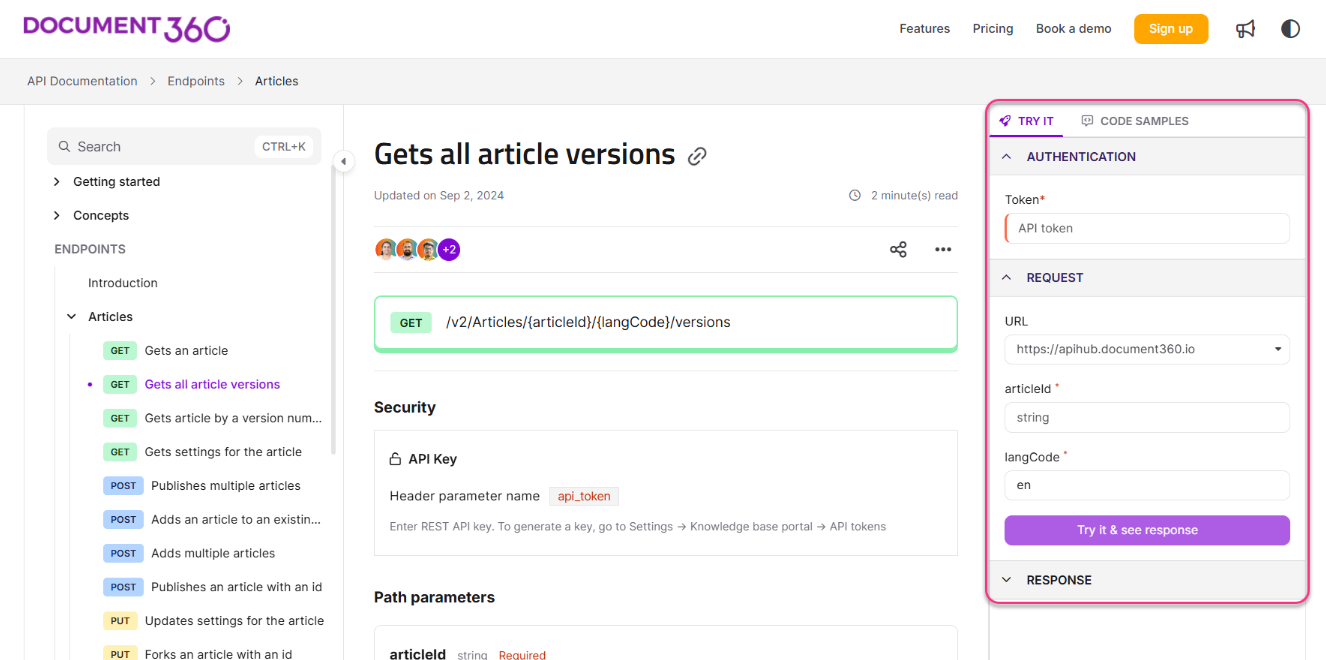
One implementation note worth flagging: if the Try It! button isn’t appearing on your published reference, the usual cause is that either the server variable or the server URL isn’t correctly defined in your OpenAPI spec. The console requires both.
Inbound Webhooks Contracts
If your API sends webhooks (server-to-client push events) alongside its request-response endpoints, Document360 imports webhook definitions from OpenAPI 3.1 specs and renders them alongside your regular endpoints, distinguished by a webhook icon. The payload schema and example are shown the same way as regular endpoint request bodies.
There’s one small caveat: Try It! is not available for webhooks. Because they’re server-initiated events rather than client-initiated calls, there’s nothing meaningful to invoke from the documentation itself, but readers can still see the full event contract, the payload structure, and example payloads. Custom content added to webhook articles is preserved across resyncs, just as it is for regular endpoints.
Nested subcategories via OpenAPI tags
One of the perennial complaints about auto-generated API docs from OpenAPI is that OpenAPI tags produce a flat, single-level navigation, which doesn’t work well for large APIs. Document360 addresses this with a convention: if you use the > character inside your tag name, it generates a nested subcategory in the sidebar.
For example, a set of tags like:
tags:
  - name: "Pets > Details"
  - name: "Pets > Health"
  - name: "Pets > Adoption"
  - name: "Vets"
produces a Pets parent category with three children (Details, Health, Adoption), plus a top-level Vets category. Up to three levels of nesting are supported. The hierarchy is preserved across resyncs, so you can maintain it in the spec rather than as a Document360-side configuration.
Custom content on endpoint articles
When Document360 generates an API reference from your spec, the structural elements like parameter names, schemas, dropdown values, and response codes are owned by the spec. You update those upstream and resync.
However, endpoint articles also support custom content sections that authors can add through the Document360 editor — additional narrative, examples, walkthroughs, gotchas, cross-links to conceptual docs, or whatever else you want to layer on. This custom content is preserved across resyncs and regenerations. You don’t lose your annotations when the spec changes.
That preservation behavior addresses one of the standard objections to auto-generated API docs: “If I add anything to the generated output, I’ll lose it on the next regeneration.” Document360’s model separates spec-owned structural content from author-owned narrative content, and only the former is overwritten during resync.
Handling deletions safely
When an endpoint disappears from a resynced spec — because it was removed, renamed, or deprecated upstream — Document360 doesn’t just silently delete it. During resync, you get a warning listing endpoints marked for deletion, along with a “Confirm to continue” checkbox before the change is applied.
Deleted endpoints are moved to a Recycle bin where they remain visible (and recoverable for preview) for 30 days. Programmatic users of the resync API can also send ForceImport = false to preview deletions before committing them, which is helpful when you’re wiring up automated pipelines and want to inspect the diff before it lands.
Reader access and privacy
You can control who sees a published API reference via workspace-level reader access settings:
- Private — Only authenticated team accounts can view the API reference. Useful for internal or partner-only APIs.
- Public — Anyone can access the reference without authentication.
- Mixed — Some sections are public, others are restricted.
One gotcha worth flagging: if you visit the /apidocs path before any endpoint articles are published, you’ll see a 404. This is a common source of “why isn’t it working” confusion. Publish at least one endpoint article before making the reference accessible, or before linking to /apidocs from your main docs site.
Example API documentation published with Document360
To get a sense of Document360’s user experience of API documentation, let’s look at a few examples:
- PlainID API Documentation
- PagoNXT API Documentation
- Torq API documentation
- Fortanix API documentation
- Britive API documentation
- Rocket Chat API documentation
- Bloxs API documentation
In the following sections, I’ll share my observations on some of these sites.
Quick, snappy interface
Document360 pages load quickly, and the site is easy to navigate. The experience feels modern and aligned with the latest web conventions. (In contrast, many other tech comm tools tend to have an outdated experience and feel.)
To confirm the speed, I plugged about 5 different pages from the Torq API documentation into https://tools.pingdom.com, a site that measures website technical benchmarks. Each time, the “Performance Grade” was 100. In contrast, my idratherbewriting.com site, which I feel loads quickly, scored only in the mid-70’s.
Site loading speed might not ostensibly seem like a major UX factor, but it is. Consider how developers impatiently click through various documentation pages looking for answers, especially when those pages are individual endpoints. The faster the site loads, the more apt developers will be to stick within the documentation site to find information.
Endpoint organization in the sidebar
Document360’s hierarchical grouping of API endpoints in the sidebar is easy to browse, with collapsible folders that group the different endpoints based on their tags in the OpenAPI file. If you have many different groups and API endpoints, this folder-based hierarchy allows users to navigate them without feeling overwhelmed. Here’s an example from Bloxs:

Parameter readability
In the Document360 sites, the parameters are easy to read because of the collapse/expand toggles and the tree diagram lines. For example, take a look at this Body parameters section from Fortanix:

Try-it and code examples pane
Document360’s Try-it pane and code examples offer a convenient utility for developers to experiment with the API. As has come to be expected in API outputs, this interactive pane appears on the right, creating a tri-column display. Given this three-column output, there’s not a lot of extra real estate, but Document360 manages to make the UI comfortable and attractive despite the limited space. Take a look at this example from Medallia:

Here’s another example with the Rocket Chat API, this time with the Try-it pane shown by default:

See it in action: This video walks you through the feature step by step:
Practical takeaways from working with Document360
A few observations from evaluating the tool:
- Good signal-to-noise ratio on Alerts and Warnings: It flags real issues (missing summaries, unresolved refs, unused tags) rather than nitpicking style choices.
- Streamlined pipeline integration: The
d360CLI is genuinely a single command in a pipeline, not a multi-stage integration. If you’re comfortable with standard CLI tools, you’ll be comfortable withd360. - Clear separation of concerns: The distinction between spec-owned and author-owned content is key. Once you understand the mental model — structural fields come from the spec, narrative sections come from the editor — the resync behavior stops feeling surprising.
- Workspace isolation: The workspace concept cleanly unbundles API docs from general knowledge-base docs, avoiding the issue where reference docs get buried three levels deep in general documentation navigation.
Overall, Document360’s API user interface is impressive and usable. It showcases your API documentation following API design best practices and standards—all with minimal fuss and configuration on your part as a writer or engineer delivering documentation.
This last part is worth emphasizing—if, as a technical writer, you find yourself spending more time fiddling with website code than your docs, more time figuring out JavaScript than on the clarity of your API’s field and parameter descriptions, more time on style libraries than on the consistency of your API endpoint descriptions, tutorials and workflows, and other documentation content, then the tradeoff for that design flexibility and customization backfires. Developers will consume content on your site; the site features and structure, nor your attention to them as an author, shouldn’t take away focus from the words on the page.
Conclusion
As I browsed through the sample sites showcasing API documentation using Document360, it made me think about how the API landscape has matured. When I first created my API documentation course (back around ~ 2016), it wasn’t clear if Swagger, RAML, or Blueprint would be the dominant format. Swagger UI’s interactive “Try it!” options to execute real requests connected with the developer imagination, especially given how developers lean towards experiential, exploratory learning. Seeing code samples in a variety of languages—another common design pattern—was also compelling, along with more diagrammed views of inputs and responses, common in Redocly’s API output.
Now that the API documentation tooling space has largely converged on a common set of expectations — tri-column layout, interactive Try It! consoles, multi-language code samples, spec-driven regeneration, and fast search — what differentiates the tools is less about basic rendering and more about:
- How well they integrate with the rest of your documentation stack
- How well they handle edge cases (webhooks, non-trivial auth, deletions, versioning)
- How much they get out of your way when you’re not actively working on them
- How well they preserve the work you do on top of the auto-generated output
Document360’s answer to the first point is “the rest of your documentation stack is us.” That pitch lands well for teams that want a unified knowledge platform where both product guides and API references sit under one roof. For teams that are perfectly happy with their existing knowledge-base setup and just need better API rendering slotted in, the pitch is different, and other tools may fit better.
On edge cases — webhooks, OAuth flows, deletion handling, and custom content preservation — the platform is noticeably more capable than it was in earlier iterations. Overall, if you’re evaluating tools for a knowledge-base-plus-API-reference use case, Document360 is worth putting on your shortlist. If you’re building a pure API reference and expect to invest heavily in bespoke custom rendering, evaluate it against spec-first tools with clear expectations about where the customization ceiling is.
About Tom Johnson

I'm an API technical writer based in the Seattle area. On this blog, I write about topics related to technical writing and communication — such as software documentation, API documentation, AI, information architecture, content strategy, writing processes, plain language, tech comm careers, and more. Check out my API documentation course if you're looking for more info about documenting APIs. Or see my posts on AI and AI course section for more on the latest in AI and tech comm.
If you're a technical writer and want to keep on top of the latest trends in the tech comm, be sure to subscribe to email updates below. You can also learn more about me or contact me. Finally, note that the opinions I express on my blog are my own points of view, not that of my employer.